 Notes Module
Your thoughts, captured and organized
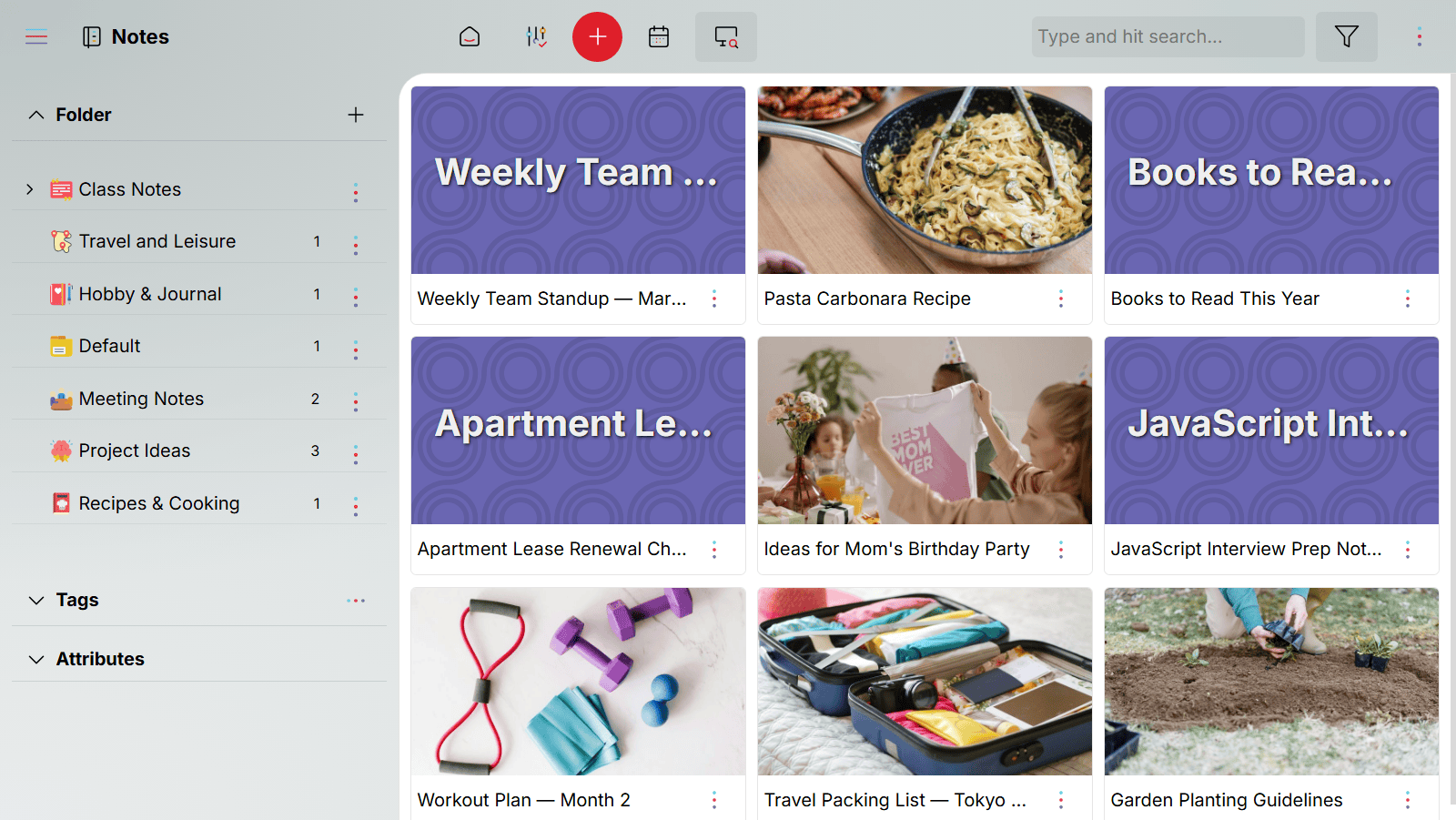
Meeting notes, class notes, journal entries, ideas, plans — everything you write down has a place in Oddapy Notes. Format with a rich text editor, organize with folders and tags, and attach any note to your calendar so it's there when you need it. Private, secure, and accessible from every device.
You take notes everywhere. You find them nowhere.
Meeting notes in one app. Class notes in another. Personal thoughts in a phone memo. Ideas scribbled in a doc you saved somewhere in a cloud folder you can't remember the name of.
The problem isn't that you don't take notes. It's that your notes live in too many places, with no structure connecting them. When you need a note, you waste time searching across apps, folders, and devices — and sometimes you never find it at all.
Notes should live in one place, organized the way your mind works, and connected to the moments they belong to.
One place for every note you'll ever write
Write with a full-featured editor
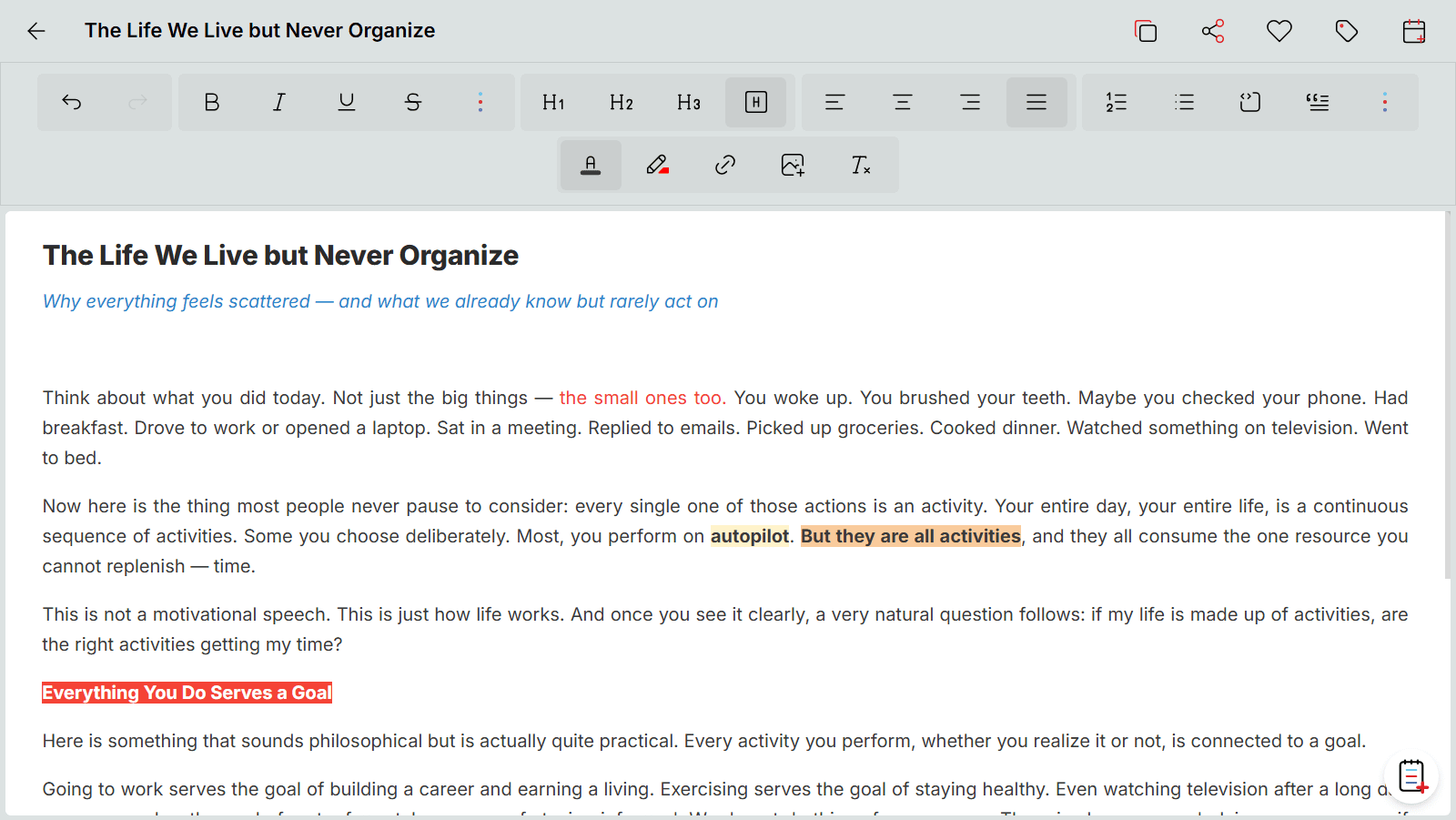
The built-in rich text editor gives you everything you need to create well-structured notes. Format text with bold, italic, underline, and subscript. Use four heading levels to organize long notes. Align text left, center, right, or justify. Create bullet and numbered lists. Apply text and background colors for emphasis. Insert hyperlinks and images directly into your note.
All standard keyboard shortcuts work — Ctrl+C, Ctrl+B, Ctrl+Z, and every shortcut you already know. The editor stays out of your way when you're writing fast and gives you full control when you're formatting deliberately.
Organize with folders and tags
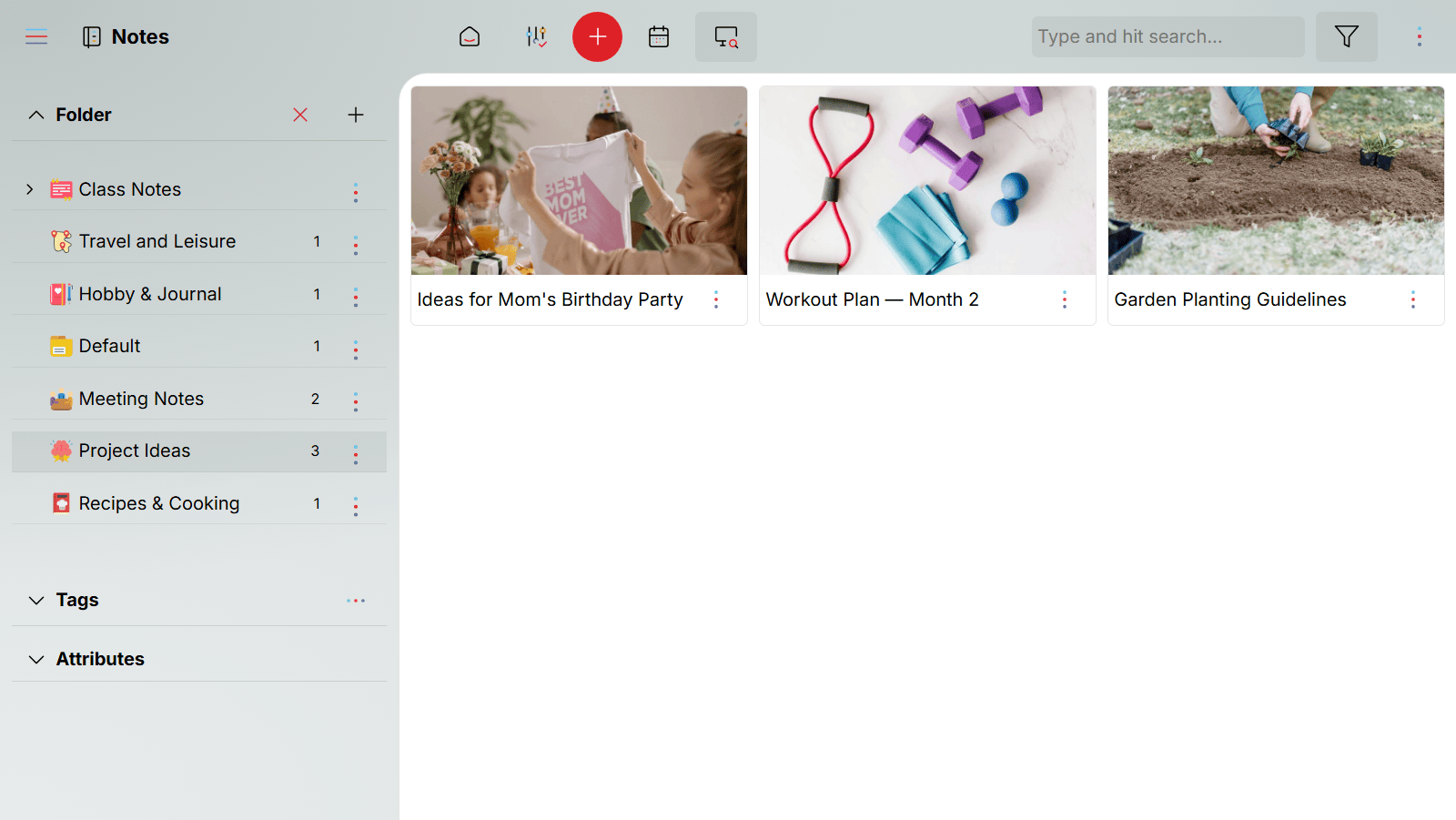
Every note can be placed in a folder and tagged with one or more labels. Folders give your notes physical structure — group meeting notes together, keep journals separate, collect study material in one place. Tags add a cross-cutting layer: a single note can carry multiple tags, making it discoverable from different angles.
Oddapy provides default folders at sign-up, and you can create your own to match how you think. Tags are equally flexible — 50 ready-made tags are available from the start, and custom tags can be created anytime.
Between folders and tags, you build a retrieval system that works with your brain, not against it. When you need a note, you know exactly where to look — or you search by keyword and find it instantly.
Attach notes to your calendar
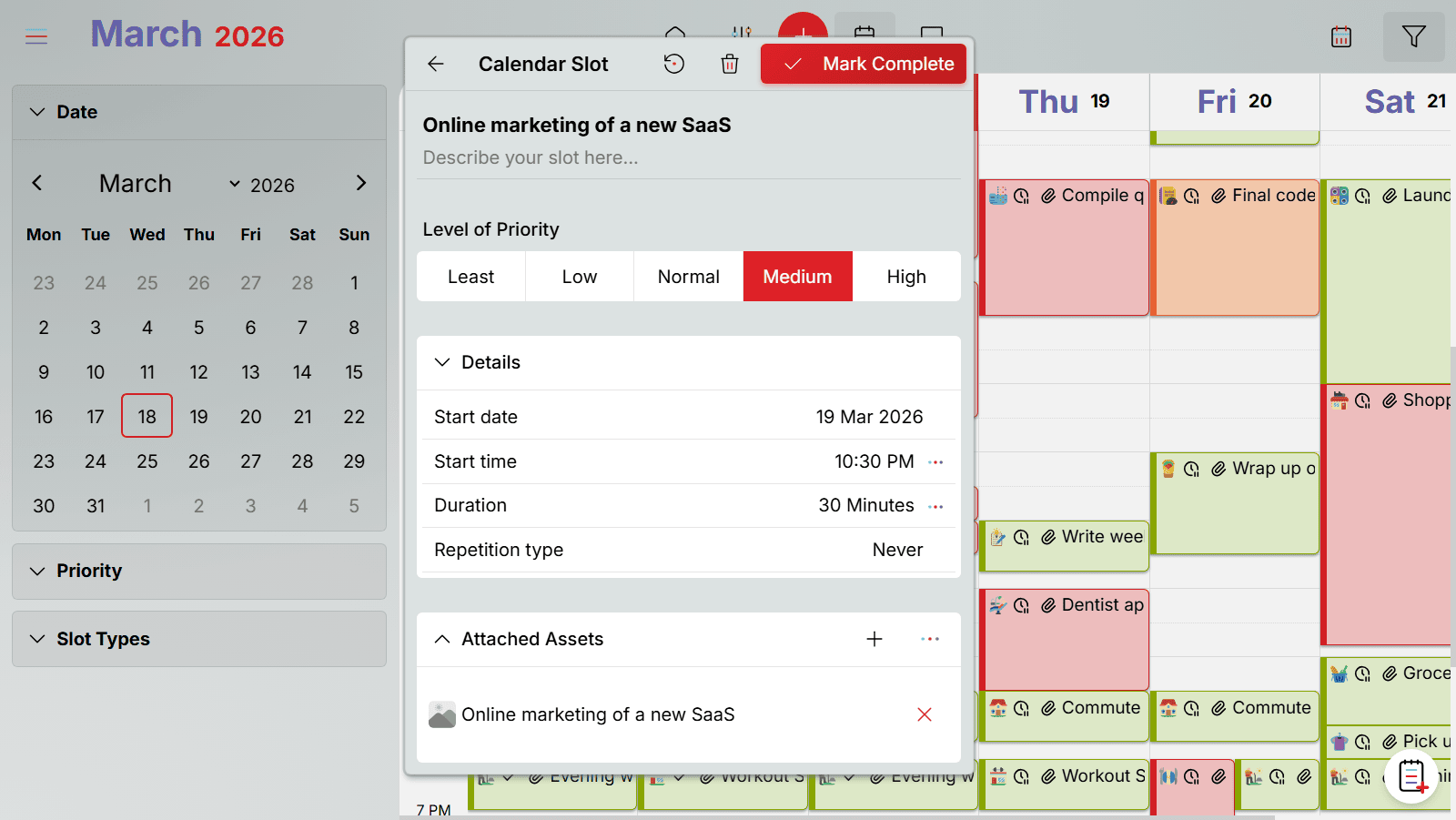
A note sitting in a folder is useful. A note that appears exactly when you need it is powerful. Attach any note to a calendar slot, and it's there waiting at the scheduled time.
Attach meeting notes to the meeting slot — they open when the meeting starts. Attach a journal entry to your evening reflection time. Attach study notes to your exam prep block. The calendar becomes the delivery system for your notes, not just a schedule of events.
Access from every device
Oddapy runs on any device with a browser — phone, tablet, laptop, desktop. Your notes sync across all of them. Write a note on your laptop during a meeting, review it on your phone on the way home. No manual sync, no export/import, no device lock-in.
Pin your active notes for one-tap access
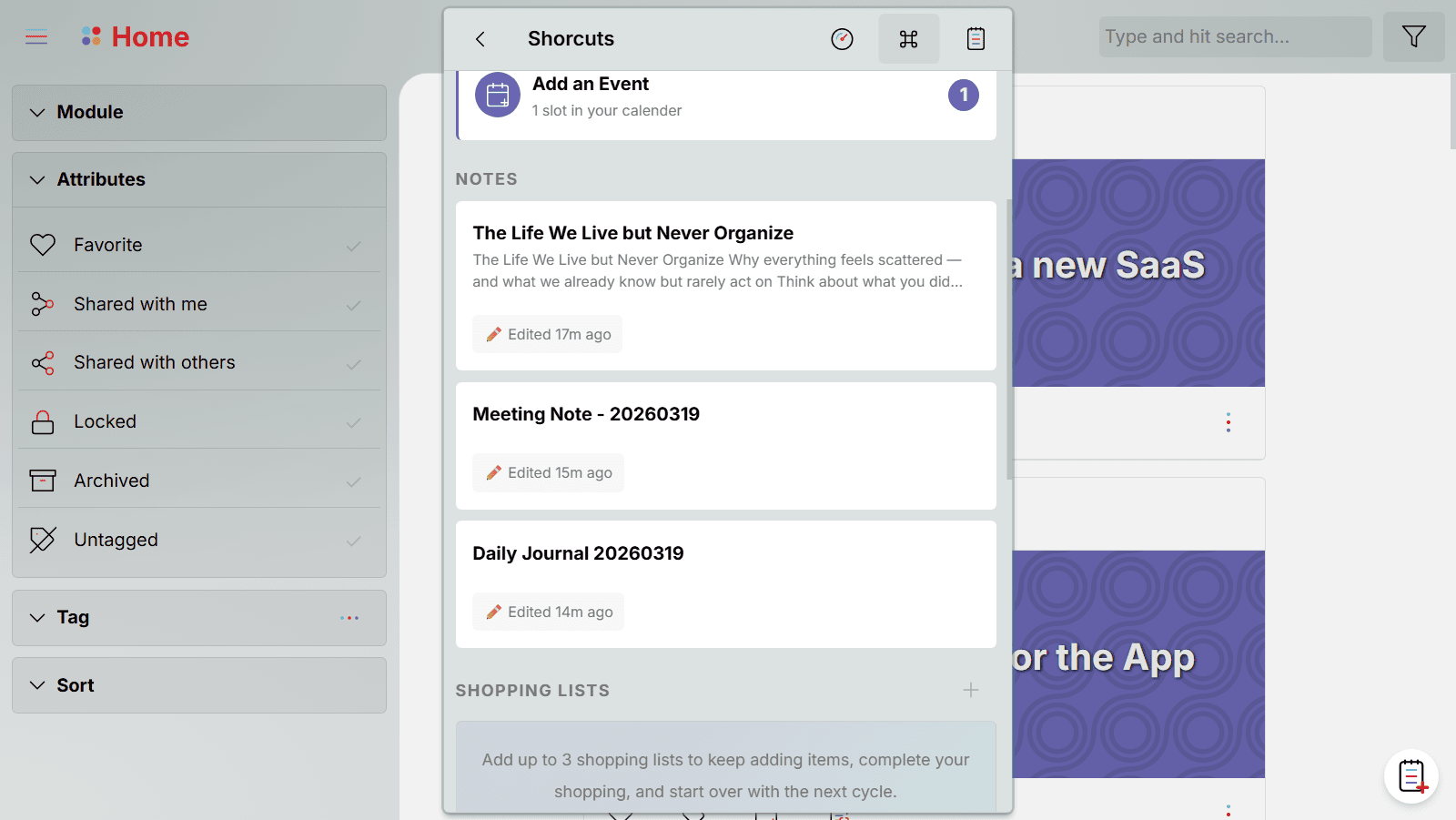
Pin up to three notes to the Launch Pad Shortcuts page. A pinned note opens instantly with a single tap — no navigating through menus or folders. This is ideal for notes you use daily: today's meeting notes, a running journal entry, a class note you're building throughout the week.
The Launch Pad doesn't just give you quick access — it keeps you honest. If a pinned note hasn't been edited since the previous day or earlier, it's highlighted as stale. If a pinned note has no calendar event attached — today or in the future — it's flagged, signaling that you have no active plan to use or review it. These nudges ensure that your Launch Pad stays a workspace, not a graveyard of forgotten pins.
Fleeting thoughts deserve a safe place to land
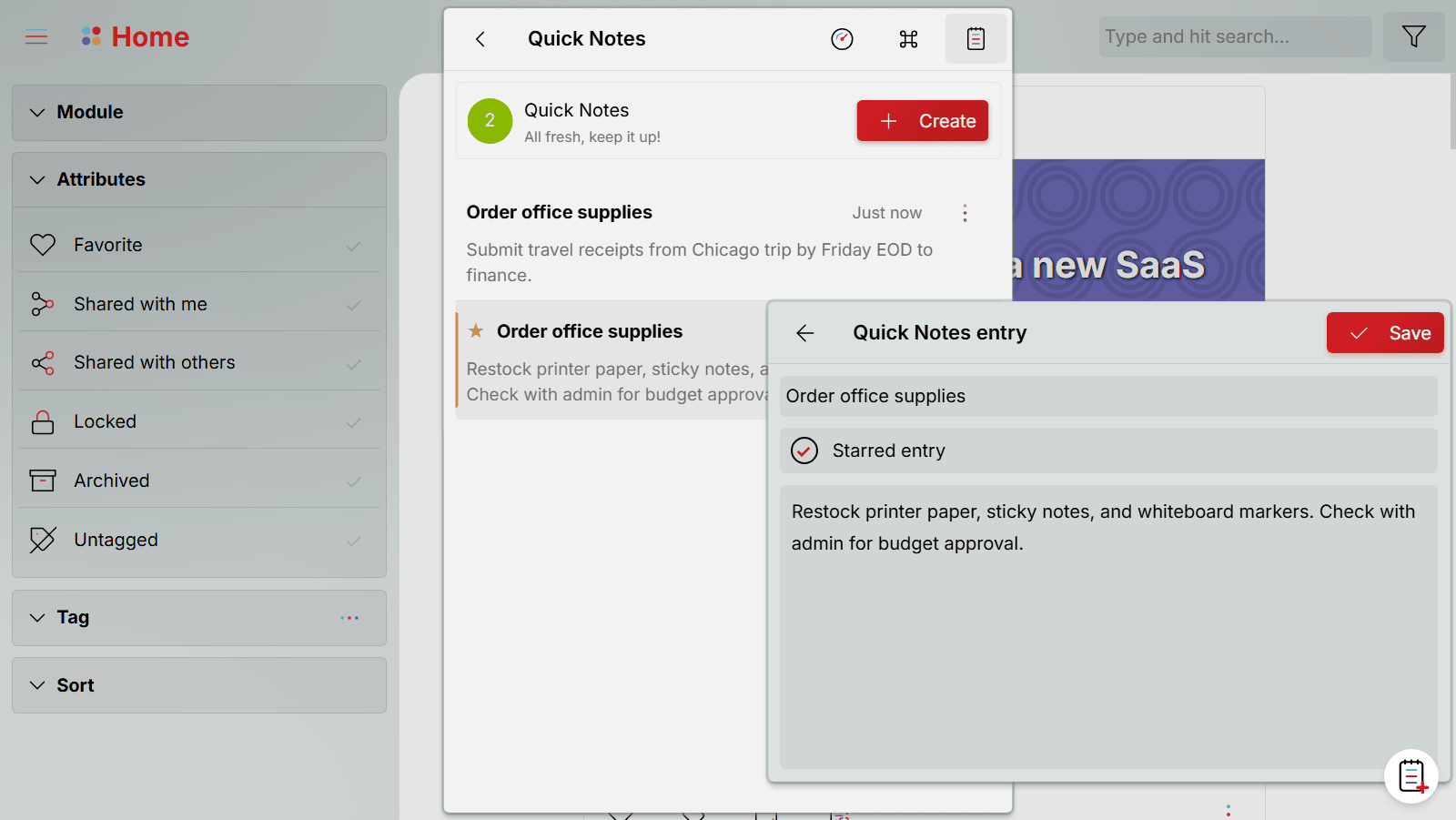
Not everything arrives as a fully formed note. Quick conversations, sudden ideas, follow-up reminders — these fragments need to be captured in the moment, not lost to distraction.
Quick Notes is an inbox-style capture space built into the Launch Pad. Jot something down in seconds. Star it if it's important. When you have time, turn any quick note into a proper note, a task, a calendar slot, or any other asset. The principle is simple: capture immediately, organize later.
The Launch Pad monitors the health of your Quick Notes with a color-coded indicator. A note is considered fresh for three days — after that, it's stale. Keep three or fewer fresh notes and you're in the green. Let the count grow past six or allow notes to sit untouched, and the indicator shifts through yellow, orange, and red — each level a clearer nudge to stop and organize. When more than half your notes have gone stale, the system flags it directly: your inbox is aging faster than you're processing it.
The intent is not to pressure you. It's to keep Quick Notes functioning as an inbox — a place where thoughts arrive, get processed, and move on — rather than quietly becoming a pile of forgotten fragments.
Your notes, shared on your terms
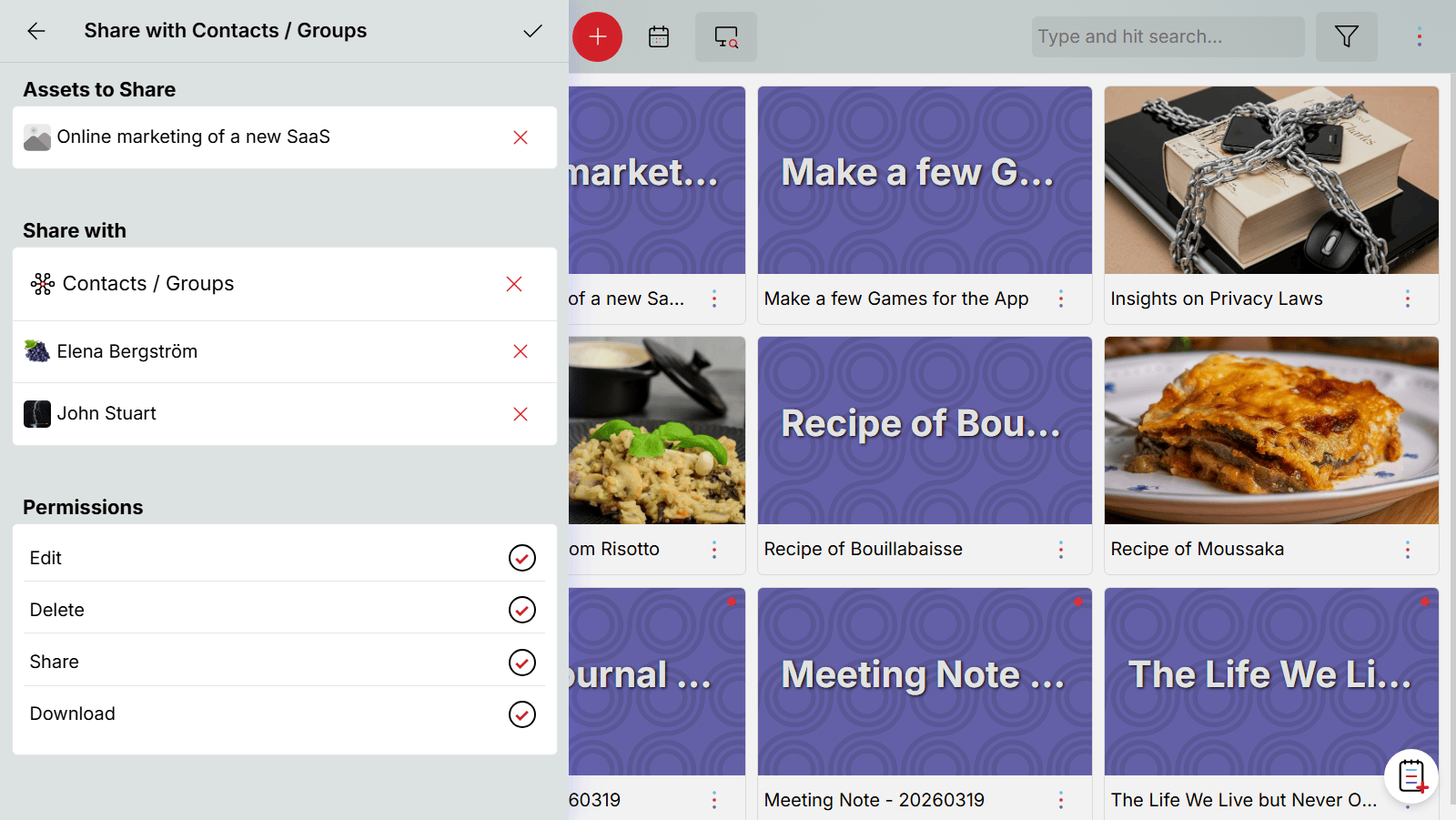
Share any note with contacts or groups using granular permissions — control Edit, Delete, Share, and Download access independently. When edit permission is granted, the shared user can edit the note's content — but only one person can edit at a time. If the owner is editing, the shared user waits, and vice versa. This keeps the content consistent without the complexity of real-time co-editing.
Shared users without edit permission see the note within the read-only boundaries you set. Notes can also be shared via URL — always read-only. Either way, only Oddapy users can access shared notes, keeping your content within a secure ecosystem.
If you've shared a note with edit permissions and need to revoke access, lock the note. Locking restricts all editing instantly, without removing the share.
Your notes are yours. Period.
Every note you write is stored in your private space. Files are encrypted at rest and in transit. No one sees your content but you — not other users, not advertisers. There are no ads, no profiling, and no data selling.
Other users cannot discover your account through search. The only way someone connects with you on Oddapy is through a Connection Handle you share outside the app. Your notes are personal by default and shared only when you choose.
Notes that fit the way you live
Meeting Notes
Pin today's meeting note to the Launch Pad. Attach it to the meeting's calendar slot. When the meeting starts, the note is right there. Write during the meeting, format afterward, and share with attendees if needed.
Personal Journal
Create a daily journal note and attach it to your evening reflection slot. Write about your day, track your mood, capture what went well and what didn't. Folders keep entries organized by month or theme. Tags let you find every entry about a specific topic instantly.
Class Notes
Create a note for each lecture and organize them by course folder. Tag by topic for cross-course discovery. Attach to your study calendar slots so the right notes surface during exam prep. Access from your phone during commute reviews or your laptop during deep study.
Reference Notes
Keep important information in one place — account details, procedures, instructions, recipes, anything you refer to repeatedly. Tag them for quick retrieval. Pin the ones you use most to the Launch Pad.
Your first note, in under a minute
Create a note
Tap the Note button on the Launch Pad Shortcuts page and give it a name. Your note opens in Asset Props — add a description, assign a folder, and attach tags. Tap the Note section to start writing. You can also create notes from the Explorer.
Write and format
Start typing. Use the toolbar to add headings, bold text, lists, colors, images, and links. Format as much or as little as you want — the editor adapts to your style.
Organize and connect
Place the note in a folder. Add tags for easy discovery. Attach it to a calendar slot so it appears when you need it. Pin it to the Launch Pad if you'll use it today.
Stop scattering your thoughts across ten apps
Sign up free. Write your first note in under a minute. Folders, tags, and your calendar are ready from day one.
Start Writing Free Install AppNotes is just one part of the picture
Attach notes to your goals. Link them to calendar events alongside your shopping lists and bookmarks. Keep everything connected in one app.